Eraser: Remove unwanted object
- 4.0
- Rating
- 1.00M
- Installs
- Free
- Price

 Analysis by App-foxy
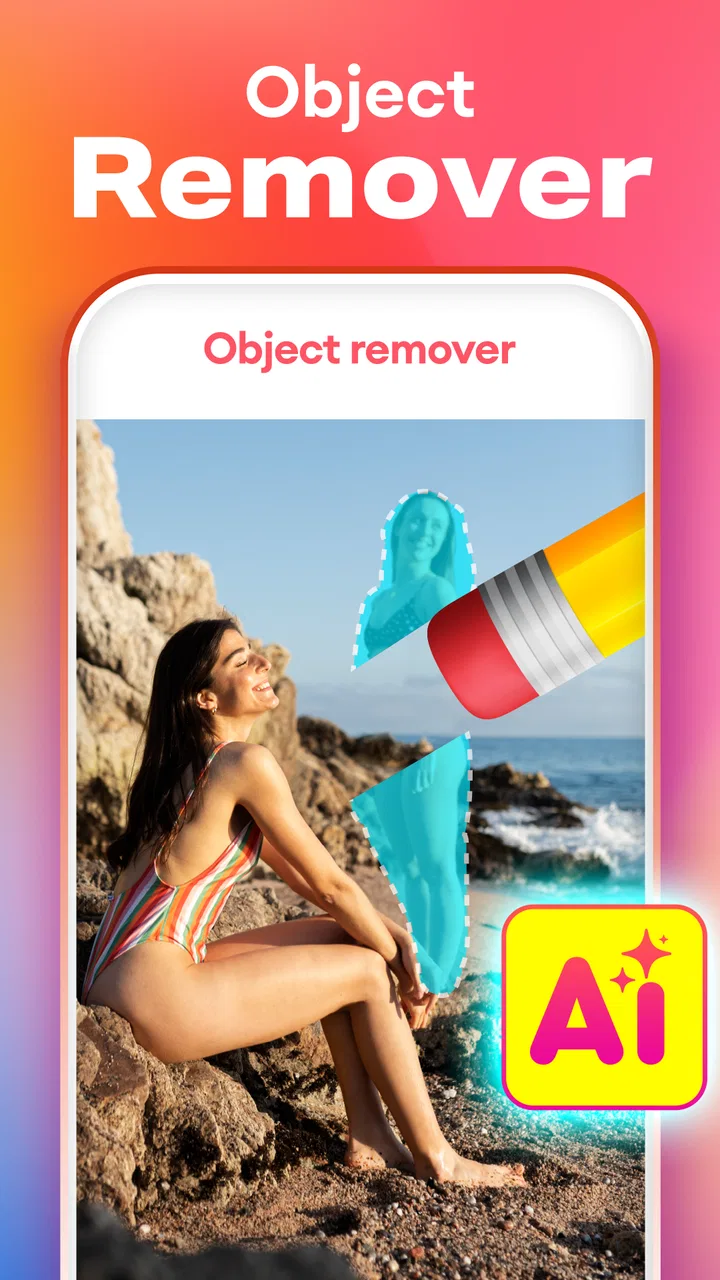
I tried Eraser: Remove unwanted object as a practical photo-cleanup tool rather than treating it like a full photo editor. Its purpose is focused: take an unwanted person, sign, mark, or small distraction out of an image and make the background look more natural. That narrow goal is also its main appeal. I did not have to work through a large collection of color, portrait, or collage controls before reaching the tool I actually wanted.
Developed by Merryblue, this free photography app is aimed at people who want a quick correction on a phone. It is suitable for Everyone, works on devices starting with Android 9, and its current version is 1.4.1. The app has reached over a million installs and holds a 4.0 average from around 4.8 thousand ratings, which suggests a useful but not flawless experience. I would describe it as a convenient eraser for ordinary pictures, not a replacement for a serious desktop retouching program.
How Eraser feels in everyday use
I find Eraser most useful when a shared phone turns a quick photo into a small group decision: one person wants a distraction removed, while another wants the untouched scene kept. I’d make the edit on a copy and check the result before it gets shared, since cleanup can change how a moment appears. That simple habit also makes it easier to agree on who is editing which picture.
You May Also Like

 Blood Strike: 2.5 Anniversary
Blood Strike’s Loadouts Turn Every Drop Into a Tactical Gamble
A close look at Blood Strike’s custom loadouts: how fast access to signature weapons reshapes its battle royale rhythm, rewards preparation, and narrows the gap between fights.

 Pandora - Music & Podcasts
Pandora’s Music Is Easy to Start, but Harder to Recover
Pandora’s strength is its low-effort path from a seed to a station. Its weak spot is how much confidence it asks you to place in connection, setup, and quiet recovery.

 8 Ball Pool
 Is Built on Rivalries, Rematches, and Routine
A close look at the rivalries, rematches, shared routines, and unanswered safety questions that turn a quick pool match into a persistent mobile community.

 Samsung Music
’s Quiet Strength Is Playing What You Already Own
Its reach comes less from spectacle than from dependable access to a personal library. That simplicity is both the app’s strongest retention engine and its ceiling.

 AccuWeather: Weather Radar
AccuWeather Review: A Quick, Clear Forecast for Everyday Decisions
For everyday plans, the best forecast is the one you can understand quickly. AccuWeather makes rain timing, radar, and local conditions easy to act on, with a few trade-offs.

 Hill Climb Racing
Why Hill Climb Racing Still Turns Crashes Into One More Run
A tiny car, a bumpy hill and one more upgrade: Hill Climb Racing keeps resurfacing because its simple chaos makes every near-miss feel personal.
More From Our News Desk
View All News


A focused workflow instead of a complete editor
The most helpful thing about the app is that its job is immediately understandable. I choose a photo, identify the unwanted area, and concentrate on removing it. That makes it especially handy when the original picture is already well composed and only one element is spoiling it. A stranger in the far background, a rubbish bin near the edge, a small logo, or a cable crossing an otherwise clean wall are the kinds of problems this approach suits.
I find this more comfortable than opening a conventional editor with dozens of unrelated tools. In a general-purpose editor, object removal may sit beside layers, curves, masks, filters, and export settings. Those options are valuable when I need detailed control, but they also slow down a simple correction. Eraser: Remove unwanted object keeps the attention on the selection and the result, which is a good match for casual phone photography.
That simplicity has a trade-off. If I want to adjust lighting, reshape a subject, create a layered composition, or make several carefully controlled retouches, I would rather move to a more complete editor. This app is strongest when the question is “Can I hide this distraction?” rather than “Can I finish the entire image here?”
Where the tool works best
Object removal is most convincing when the area around the unwanted item is predictable. A plain sky, a painted wall, a sandy path, or a softly blurred background gives the app more visual information to work with. Small objects are also easier than large ones because the replacement area has less room to reveal mistakes.
One realistic example is a travel photo taken in front of a landmark. I might like the lighting and framing, but a passerby could stand directly behind the main subject. If that person occupies a small part of the image and the background contains repeating stone or open sky, Eraser can be a sensible first attempt. I would zoom in before accepting the result, because a quick glance at the full image can hide a strange edge or a repeated texture.
The result becomes less dependable when the object overlaps hair, fingers, patterned clothing, text, railings, or a sharp architectural line. Removing a person from a busy street is not the same task as removing a dot from a blank wall. In those cases, I would expect to make a more careful selection and possibly compare the result with another editor that offers cloning or manual brush control.
A useful method for cleaner results
My best tip is to avoid selecting a large halo around the object. It may seem safer to paint generously, but an oversized selection can erase useful background detail and make the repair more obvious. I start close to the unwanted item, inspect the boundary, and expand only when a leftover edge remains. This is a small habit, but it makes a noticeable difference with objects beside lines or textured surfaces.
I also look at the image at two scales. At full-screen size, I check whether the photo still feels natural as a whole. Then I inspect the repaired area more closely for duplicated shapes, smudged edges, or a background pattern that suddenly stops. This two-step check is more reliable than judging the result only while the selection is active.
Another practical workflow is to keep the original image untouched and treat the cleaned version as a separate copy. That matters when the removal is slightly too aggressive. I can return to the source and try a smaller selection instead of losing the original composition. For important pictures, I would also compare the edited image with the source before sharing it, especially if the correction involves a face, a product label, or a location detail.
What the current version means for users
The current release is 1.4.1, and that gives existing users a clear reference point when checking whether their installation is up to date. I would not treat a version number by itself as proof of a dramatic redesign, though. The useful question is whether the app opens reliably on the device, handles the kinds of images I usually edit, and produces a clean enough result for my intended use.
For someone already using an older installation, updating is reasonable when the store offers the newer build, particularly if the current app feels unstable or behaves differently from the experience described by other users. I would still save important originals before testing an update. That is normal photo-editing caution, not a criticism of this particular app: a source image is often more valuable than the quick correction made from it.
New users should also remember that the app is free to install, while in-app purchases range from $4.99 to $28.99 per item. I would check the purchase screen carefully before confirming anything and decide whether the free experience already covers my needs. For occasional removal of small distractions, paying may not be necessary. For frequent use, the value depends on how consistently the available tools handle my photos and how often I would otherwise open a more advanced editor.
How it compares with familiar alternatives
Compared with a standard phone editor, this app offers a more direct route to object removal. A basic gallery editor may be faster for cropping, rotating, or changing brightness, but it may not give the same focused experience for cleaning a picture. If I only need to erase one small distraction, a dedicated tool can feel less cluttered.
Compared with a full retouching application, Eraser is easier to approach but less suited to precision work. Advanced alternatives commonly make more room for manual cloning, healing, layers, masks, and repeated revisions. Those controls help when the background is complicated or when the repair must preserve exact lines. The downside is a steeper learning curve and a slower workflow for a simple blemish.
There is also a difference between removing an object and blurring it. Blur is often safer when I need to protect a face or private detail without pretending that the scene was empty. Erasing changes the visual story by reconstructing the background. I would use removal for a stray object in a personal snapshot, but I would think twice before using it on documentary imagery, evidence, or any photograph where the original scene matters.
Limitations that become visible quickly
The app’s focused design does not remove the underlying difficulty of retouching. A tool can suggest a replacement for an unwanted area, but it cannot always understand which details should continue behind it. Repeating bricks, fence posts, shadows, and text are particularly unforgiving. A result may look acceptable in a small preview and less convincing once viewed on a larger screen.
Large removals are another boundary. If I try to clear a whole group of people, a vehicle, or a major foreground object, the app has much more background to recreate. Even when the result looks smooth, it may lose the structure that made the scene believable. For those jobs, I would prefer a manual editor where I can rebuild the area in stages and correct individual sections.
I would also skip this app if my main need is professional image finishing. Product photography, client work, detailed portraits, and images requiring repeatable edits benefit from stronger control over selections and revisions. Eraser is better matched to personal photos, social posts, quick cleanup, and experiments where speed matters more than pixel-level certainty.
Who should install it
I think it is a good fit for a casual photographer who regularly notices small distractions after taking a picture. It can also help someone preparing a clean social image, tidying a room photo before listing an item, or removing a minor background object from a family snapshot. The Everyone rating and Android 9 minimum make it accessible to a broad range of users with compatible phones.
I would recommend trying it when the unwanted element is small, clearly separated, and surrounded by a reasonably simple background. Those conditions give the app its best chance of producing a result I can share without further work. I would not choose it as my only editor if I expect to retouch complex scenes, preserve exact geometry, or make numerous adjustments in one project.
The app’s store summary centers on removing items and objects from photos, and that accurately reflects its identity without promising a complete editing suite. Its 72 written reviews provide additional user discussion beyond the broader rating count, but I would focus less on isolated praise or complaints and more on whether the examples resemble my own images. A tool that works beautifully on a plain background may still disappoint with a crowded street scene.
What I would watch in future use
When I evaluate an object-removal app over time, I pay attention to three things: how cleanly it handles edges, whether it remains comfortable on different photo sizes, and how much control it gives me when the first attempt is imperfect. Those are more meaningful to my workflow than a new label or a minor interface change.
I would also watch how the balance between free access and in-app purchases affects regular use. Since the app is free with optional items priced from $4.99 to $28.99, occasional users should test their normal workflow before spending money. A purchase makes more sense only when the app repeatedly saves time and produces results I would otherwise have to create manually elsewhere.
My final view is positive but measured. Eraser: Remove unwanted object is a practical photography app with a clear purpose, a low barrier to entry, and a workflow that suits quick corrections. I like it most for small, well-defined distractions against simple backgrounds. I would keep a more capable editor available for difficult scenes, important images, and repairs that need manual precision. If your usual problem is one unwanted object rather than an entire photo that needs rebuilding, this is a sensible free starting point.
Sharing a phone without sharing every edit
In a household where people pass one phone around to take pictures, the useful boundary is the photo itself: decide which image is being cleaned up, then check the saved result before anyone sends or posts it. I would not assume an editing app creates separate family spaces or controls who can see a finished image. If several people use the same device, agree whose photo is being changed and leave the original intact so another person can compare or reuse it.
A practical example is a shared picture from a weekend outing. One person may want a stranger removed from the background, while someone else may prefer the untouched scene. Keeping both versions avoids turning a small cleanup into a disagreement about which image is the original. For a shared household album, I would label or organize the edited copy through whatever photo-management method the family already uses rather than relying on the eraser to coordinate versions.
Household routines and age context
The Everyone age rating makes the app broadly suitable in age terms, but I would still guide younger users through edits that change what a photo appears to show. Removing a distracting object from a personal snapshot is different from altering an image that will be used to settle a disagreement or represent a real event. A quick conversation about keeping the source and being honest about edits is more useful than treating removal as a harmless automatic fix in every context.
For a family that edits photos only now and then, the free installation is an easy way to try a focused tool, while optional purchases are worth discussing before anyone taps through a payment screen. I would set that expectation on a shared device and let the person responsible for purchases review the cost. The app can be handy for casual cleanups, but it does not replace household rules about accounts, spending, or where pictures are shared.
My household verdict
For a shared phone, I see this as a useful single-purpose utility rather than a family photo hub. It can help one person tidy a small distraction quickly, and its narrow workflow is less intimidating than a full editor. The best household habit is to preserve the original, inspect the edited copy together when the image matters, and avoid using removal to misrepresent something important.
I would choose it for occasional, low-stakes corrections on compatible Android devices, especially when the background is simple and the people using the phone understand what the edit changes. I would skip it as a coordination solution or as the main tool for complex family albums; a general editor or shared photo service is better suited to those jobs. Used with sensible boundaries, it earns a place as a convenient cleanup option without needing to become the center of a household’s photo routine.
FAQs for Eraser: Remove unwanted object
01What is Eraser: Remove Unwanted Object app used for?
Eraser: Remove Unwanted Object is a photo editing app designed to help users effortlessly remove unwanted elements from their images. Whether it's a photobomber, unwanted text, or distracting background objects, this app uses advanced algorithms to provide a seamless editing experience, allowing your photos to look clean and professional.
02Is Eraser: Remove Unwanted Object easy to use for beginners?
Yes, Eraser: Remove Unwanted Object is designed with an intuitive interface that's beginner-friendly. The app provides a step-by-step guide and tutorials to help new users understand how to effectively use its features. Even if you're not experienced in photo editing, you'll find it easy to navigate and achieve great results.
03Does Eraser: Remove Unwanted Object support high-resolution images?
Absolutely, Eraser: Remove Unwanted Object supports high-resolution images, ensuring that photo quality is maintained even after editing. This feature is particularly important for users who want to print their photos or need them for professional purposes, as it ensures clarity and precision in the final output.
04Are there any in-app purchases or subscriptions required?
Eraser: Remove Unwanted Object offers both free and premium features. While the basic tools are available for free, more advanced editing options and tools require in-app purchases or a subscription. This allows users to access more powerful features if they choose to enhance their editing capabilities.
05Is Eraser: Remove Unwanted Object available on both Android and iOS?
Yes, Eraser: Remove Unwanted Object is available for download on both Android and iOS platforms. Users can easily find the app on the Google Play Store for Android devices and the Apple App Store for iOS devices, ensuring accessibility for a wide range of smartphones and tablets.
Pros
- Easy to use with intuitive interface.
- Efficiently removes objects from photos.
- Supports high-resolution images.
- Allows undo and redo actions.
- No intrusive ads during editing.
Cons
- Limited advanced editing features.
- Occasional glitches with complex backgrounds.
- Export options are somewhat limited.
- Free version has watermarked exports.
- Requires in-app purchases for full features.

Eraser: Remove unwanted object
Gallery